.png?width=100&height=100&name=Design%20sans%20titre%20(5).png)
💡 This article is aimed at two profiles:
- You manage your own properties (Host mode) - check these points on your Airbnb account before connecting Biloki.
- You are a concierge in Co-host mode - share this article with your owner and guide them through these checks before they connect their Airbnb account from their Biloki space.
What you need to check before connecting:
1. Check that no other software is already connected to your Airbnb account
⚠️ Before connecting Biloki, make sure no other PMS or channel manager is already linked to your Airbnb account (or your owner’s). Two pieces of software connected simultaneously can cause calendar conflicts and double bookings.
How to check:
- Log in to airbnb.com
- Click on your profile photo in the top right (burger menu)
- Go to Account settings
- In the left menu, click on Privacy
- Scroll to the bottom of the page
- Check the Connected services section
If services are listed (other PMS, API-connected pricing tools, etc.), disconnect them before connecting Biloki.
✅ The “Connected services” section must be empty before connecting Biloki.
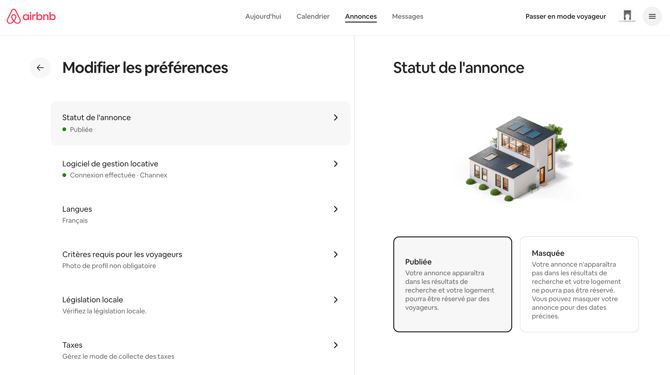
2. Your listings are active and published
Check in your Airbnb dashboard that each property to be synchronised is online (and not paused or in draft).
3. Your photos are up to date
Check that the photos on your listing are the ones you want to appear in the Biloki guest guide - they cannot be re-synchronised automatically afterwards unless you disconnect and reconnect your property in Biloki. You can modify them or add new ones directly in the guest guide on Biloki.
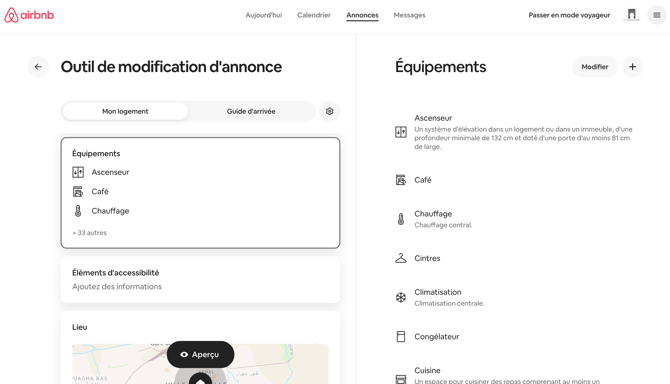
4. Your amenities and house rules are complete
Make sure the list of amenities and house rules are correctly filled in on Airbnb before connecting (they are imported and appear in the Biloki guest guide).
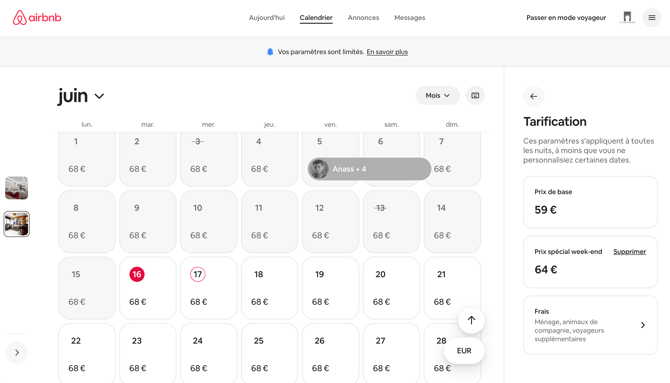
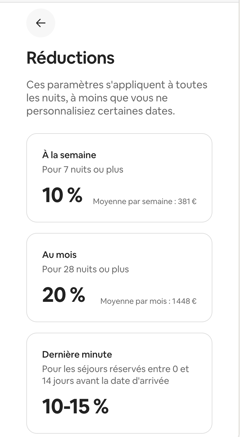
5. Your price settings are complete
- The base price per night (and weekend price if applicable)
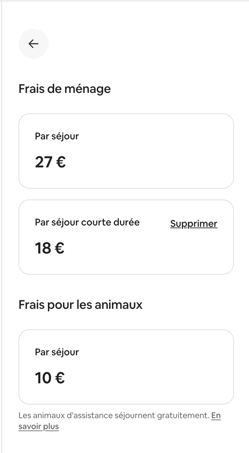
- Cleaning fees
- Desired discounts (weekly, monthly, last minute...)
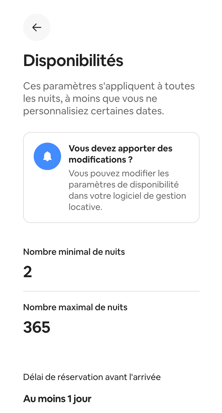
6. Your availability settings are configured
- Minimum and maximum number of nights
- Lead time before booking
- Booking window
- Authorised arrival and departure days
7. Your booking settings are defined
- Instant booking enabled or not
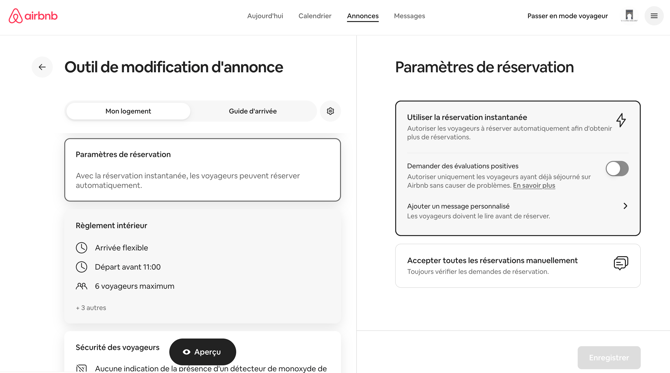
- Check-in and check-out times
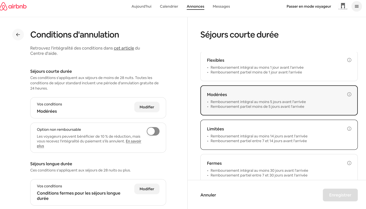
- Cancellation policy
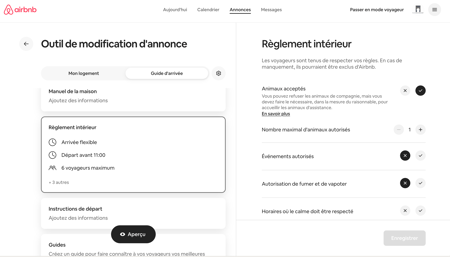
- Guest rules (children, pets, smokers, events) - in the “Arrival guide” tab
8. Disable your existing automatic messages
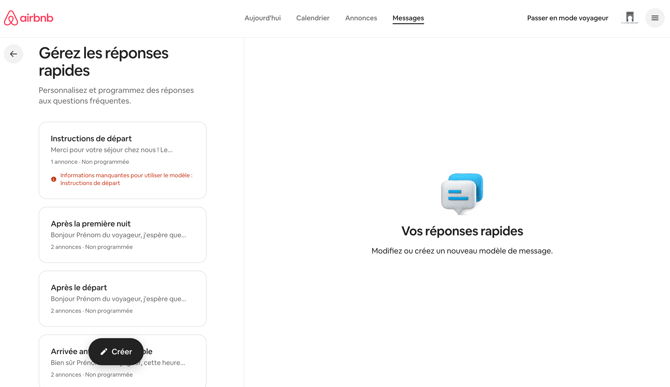
If you already have automatic messages configured on Airbnb, disable them before activating your templates in Biloki - otherwise your guests risk receiving the same messages twice.
How to access from Airbnb:
- Click on Messages
- Click on Settings
- Click on Manage my quick replies
- Click on the relevant quick reply
- Click on the template that appears: a window opens on the right to view the template
- Click on Edit in the Scheduling section
- Click on Do not schedule
⚠️ Remember to save your changes, and to repeat this process for all scheduled messages linked to the property. This must be done on all Airbnb accounts connected to Biloki.
Biloki only imports published and active listings. Photos, amenities and house rules are retrieved only once - they do not re-synchronise automatically afterwards.