.png?width=100&height=100&name=Design%20sans%20titre%20(5).png)
💡 This article is aimed at two profiles:
- You manage your own properties (Host mode) - check these points on your Booking account before connecting Biloki.
- You are a concierge in Co-host mode - share this article with your owner and guide them through these checks before they connect their Booking account from their Biloki space.
What you need to configure and check before connecting:
1. Check that no other software is already connected to your Booking account
⚠️ Before anything else, make sure no other PMS or channel manager is already linked to your Booking.com account (or your owner’s). Two pieces of software connected simultaneously can cause calendar conflicts and double bookings.
How to check:
- Log in to the Booking.com extranet
- Click on Property in the top menu
- Go to Connectivity
- Check the Connectivity provider section
If a provider is already connected (another PMS, channel manager...):
- Disconnect it
- Click Search
- Type channex.io in the search field
- Select and connect this connectivity provider
✅ The connectivity provider must be channex.io before starting the connection with Biloki.
2. Check your rate plans
- Create all your rate plans (weekly, monthly, last minute...) before connecting
- Base them all on the standard rate
- Enter the minimum number of nights in each rate plan (e.g. 7 nights for the weekly rate, 28 nights for the monthly rate)
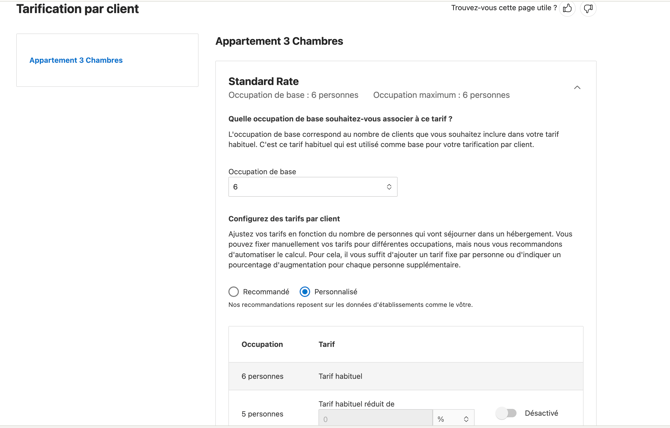
3. Additional guest pricing
If you charge a supplement per guest beyond a base occupancy, configure it directly in Booking.
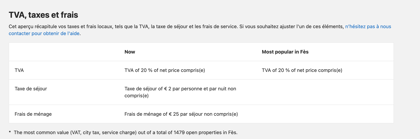
4. Taxes and fees
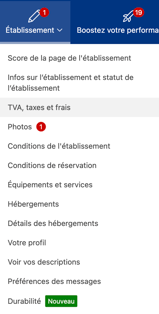
- Go to Property > VAT, taxes and fees and check that VAT and tourist tax are correctly entered
- Check that your cleaning fees and deposit are configured in Property > Policies
5. Active listings
Make sure your properties are active and visible on Booking.com before connecting.
⚠️ If your property shows the message “Property closed for reservations”, you need to “confirm your location” before connecting Biloki. Go to the Booking extranet and click “Confirm location” by entering the code received by post. Until this status is resolved, your listing cannot receive bookings.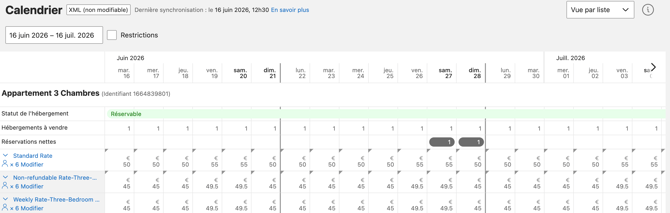
6. Disable your Booking automatic messages
If you have configured automatic messages on Booking.com, disable them before activating your templates in Biloki - otherwise your guests may receive the same messages twice.
Disable scheduled message templates:
- Booking extranet > Property > Message preferences > “Message templates” tab
- Scroll down to see your existing templates
- Click “Delete template” under each template to disable
Disable automatic replies:
- Booking extranet > Property > Message preferences > “Automatic replies” tab
- Click “Settings” next to each topic
- Uncheck the box to disable
Disable the scheduled template calendar:
- Booking extranet > Property > Message preferences > “Message template calendar” tab
- Delete the templates scheduled for automatic sending
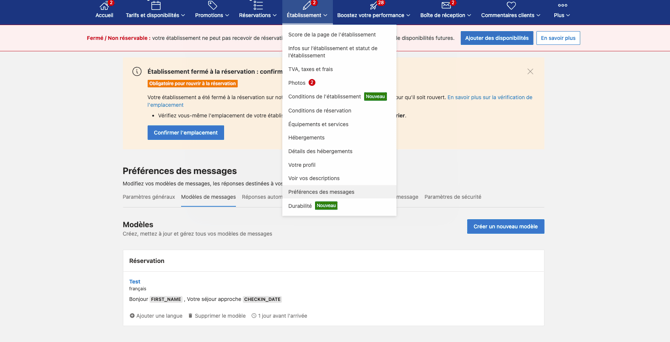
Remember to save your changes. If you manage several Booking.com accounts, you need to carry out this process on all your accounts connected to Biloki.
7. Getting Biloki links approved by Booking
As an anti-phishing security measure, Booking.com automatically blocks unapproved links and email addresses in host-guest messages. Without prior configuration:
- The guest guide link may appear struck through or replaced by “[link removed]” in your guests’ conversation
- Your messages are sent from a Biloki email address (noreply@mail.biloki.fr), which may also be blocked if not approved
To avoid both problems, whitelist the guest guide domain and the sending email address when setting up your messaging:
- Log in to the Booking.com Extranet with an administrator account
- Go to Property → Message preferences → Security settings
- Complete two-factor authentication (2FA)
- In the “Your approved links” section, click “Add a link” and enter the domain used by the guest guide: app.biloki.fr
- In the “Your email addresses” section, click “Add an email address” and enter the Biloki sending address: noreply@mail.biloki.fr
- Click “Save” for each addition
If you manage several properties (concierge or multi-property owner): after adding the link and/or email address, an “Apply to all properties” button appears under each section. Click it and confirm in the window that appears to automatically replicate these settings across all your properties, without having to repeat the process property by property.
⚠️ The confirmation window specifies how many properties the setting will be applied to (e.g. “This will be applied to 1 property”) - make sure you are on the account/view that covers all your properties before confirming. If you add a new property to your account later, remember to check that the settings have been applied to it, or redo the “Apply to all properties” operation.
Once this is done, all your future messages containing the guest guide link will go through normally, with no further action required on your part.